
Choosing desktop backup software starts with deciding what you would need to get back. A copy of your photos, the Windows setup, and everything on a hard drive call for different backup choices. Copying a few documents won’t preserve the apps and settings you’ve spent time putting in place.
AOMEI Backupper provide users with different backup solutions, such as file backup, system backup, disk backup, etc., to protect what you want on a Windows PC. If your desktop already has Windows and your apps set up the way you like, a system backup is a good place to start. From there, you can add separate protection for files stored elsewhere.
What Should Your Computer Backup Include?
Before creating a task, check where your important data is stored. Documents on C: and project files on a second drive may need different coverage.
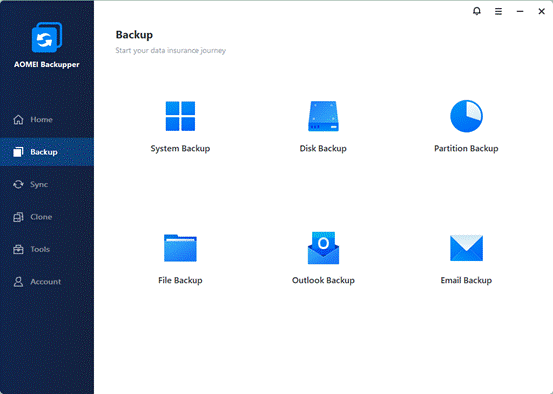
File Backup: Choose this when you need copies of files or folders, such as photos, documents, videos, etc. Your Desktop folder can be included, but desktop backup software isn’t limited to that folder.
System Backup: Choose this to save Windows, its boot-related partitions, and the apps and files stored on the system partitions, which you can restore a failing PC later. Files on unrelated data partitions aren’t automatically included.
Partition Backup: Choose this when you want to back up a specific data partition that holds files you care about. Keep in mind that a system backup won’t include data on non-system partitions.
Disk Backup: Choose this when you want all partitions on a selected disk included. If your PC has two physical drives, check that each drive you want protected is covered.
For example, a system backup can cover your Windows installation while a separate file backup protects your photo collection on D:. That way, you don’t assume one task covers the whole computer.
Make Regular Backups Easier to Maintain
AOMEI Backupper is Windows Desktop backup software that lets you match each task to what you need to protect, from individual files to the system partition or an entire disk. The system backup feature automatically selects all partitions Windows needs to boot, including hidden ones.
You can schedule later backups and use incremental backups to save changes since the previous backup. Backup Scheme also offers automatic cleanup of older backup images. Choose a retention period that leaves enough history to recover files you might not notice is missing right away.
An external drive keeps the backup on a different device from your PC’s internal drive. Leave room for both the first backup and later changes.
How to Create a System Backup of Your Desktop PC
Create a system image backup when you want to protect your Windows setup. Have an external drive ready and choose a time when the PC can stay on.
Step 1. Connect your external drive and check if it displays in File Explorer. Download, install and launch AOMEI Backupper, then select Backup > System Backup.
Step 2. Confirm the system partitions are auto-selected. Give the task a clear name so you can recognize it later. Then click the destination area and select your external hard drive. Double-check the drive instead of accepting the default without looking.
Step 3. Click Schedule to enable scheduled backups, then choose how often you want it to run. A weekly system backup works well for a PC whose setup doesn’t change much. Just pick a time when your computer is usually on.
Step 4. Review the backup settings and Click Start Backup to create a system image backup automatically.
The first run creates a full backup. After that, it switches to incremental backup, saving only the changes each time, which cuts both backup time and disk space significantly.
If you’d prefer a more independent backup, consider differential backup. It copies only new data since last full backup instead of a previous backup, either full or incremental.
You can also create a file backup to protect data. Our guide on windows 11 backup to external drive walks through the whole workflow. Just select what you to backup and select your external hard drive as the destination.
Prepare for Recovery Before You Need It
After the first backup, check its completion status. Use the Check Image feature to check the backup image for errors. This helps, but it isn’t the same as completing a successful restore.
For system recovery, create bootable media and check that your PC can actually start from it. That way, you have a way in even when Windows won’t boot and you can restore Windows 11 from external hard drive.
Start with the recovery job that matters most: System Backup for your Windows setup, with file or disk backups covering data outside it. Create that first backup while your PC is working, and test a recovery before depending on it.