In an era defined by distributed teams, hybrid work models, and rapid digital transformation, IT departments face a growing challenge: maintaining seamless technical operations across geographically dispersed devices. Whether resolving an unexpected system crash, deploying software updates, or guiding a remote employee through setup, IT teams rely heavily on reliable remote IT support software.
Choosing the right solution directly impacts operational efficiency, system security, and end-user productivity. This guide explores what to look for when evaluating tools, critical business use cases, and how top-tier solutions like AnyViewer provide the best remote desktop software experience for organizations today.
Why Modern Businesses Need Remote IT Support Software?
Deploying a dedicated remote support platform is no longer optional, it is a critical driver of operational resilience and cost efficiency. For growing companies looking for reliable remote support software for small business environments, key operational benefits include:
- Faster Resolution: Connect instantly to fix critical IT issues and cut system downtime.
- Lower Operating Costs: Save on travel expenses and on-site dispatch fees.
- 24/7 Off-Hours Maintenance: Deploy patches and updates via unattended access without disturbing staff.
- Flexible Hybrid Access: Allow employees to securely operate office PCs from any location.
Spotlight Solution: Why AnyViewer Is a Top Choice for Businesses
Among the rising platforms in the remote access market, AnyViewer has gained widespread recognition as a fast, secure, and cost-effective remote IT support software solution designed for both individual technicians and enterprise IT fleets.
Feature & Capability Comparison
| Feature Category | Key Capability | Business Value |
| Performance | Up to 60 FPS visual output & low latency | Ultra-fluid control with zero input lag |
| Security Architecture | ECC-256 end-to-end encryption, 2FA | Enterprise-grade protection against data breaches |
| Access Flexibility | Attended & Unattended access modes | Ad-hoc support or routine off-hours servicing |
| Cross-Platform | Supports Windows, iOS, and Android | Manage desktop infrastructures from anywhere, on any device |
| Device Management | Grouping, one-click access, and high-speed file transfer | Streamlined administration for growing IT fleets |
Key Advantages of AnyViewer
- Unmatched Cost-Effectiveness: Offers highly competitive licensing models, making enterprise-grade features accessible to growing SMBs and MSPs without the high overhead costs of traditional tools.
- Zero-Configuration Deployment: Easy account pairing and lightweight client codes reduce setup time for both technicians and non-technical clients.
- High-Speed Bulk File Management: Built-in multi-threaded file transfer protocol allows agents to deploy heavy patch packages, software installers, and system logs instantly during active sessions.
- Frictionless Migration & Low Learning Curve: Features an intuitive, lightweight interface that minimizes retraining costs for helpdesk teams transitioning from legacy remote support platforms.
How to Use AnyViewer for Remote IT Support
Setting up AnyViewer is fast and straightforward. Follow this guide to initiate your first remote support session in minutes.
Step 1. Download & Install AnyViewer on both devices (Windows, macOS, iOS, or Android).
Step 2. Log In: Register and sign into your account on your local device.
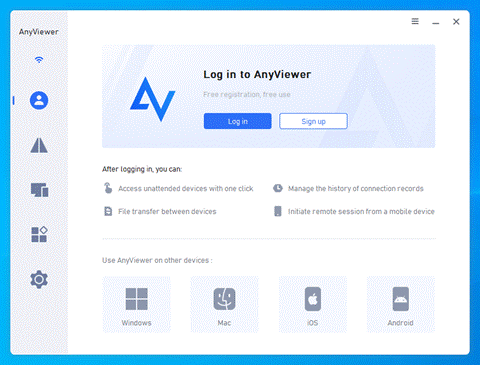
Step 3. Start a Remote Session
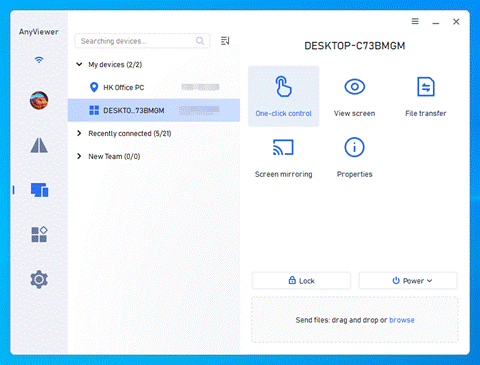
Option A: Unattended Access (For Managed Devices)
- Sign into the same account on the remote computer.
- On your local device, go to Device, select the target computer, and click One-click control.
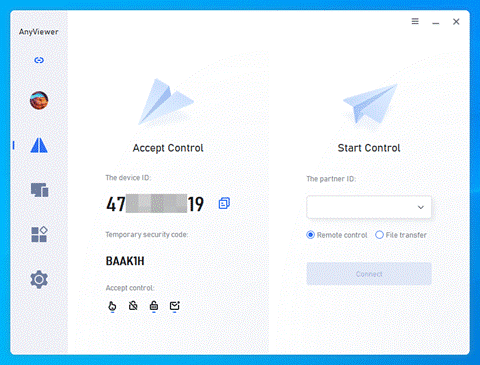
Option B: Attended Access (For Quick Client Support)
- Get the client’s Device ID and Temporary Security Code (shown on their screen).
- On your device, enter their Device ID and click Connect.
- Select Input security code, enter the code, and click OK.
- You can also select Send a control request instead of a security code, the client just needs to click Allow on their screen.
Real-World Business Use Cases
Different teams leverage remote IT support software to address distinct operational challenges:
- MSP Off-Hours Maintenance: Managed Service Providers use unattended access to push routine system updates, patches, and security scans overnight without interrupting client workflows.
- On-the-Go Emergency IT Response: IT managers can connect to critical company servers or user endpoints directly from iOS or Android mobile devices while away from their desks.
- Remote Employee Onboarding & Training: Helpdesk teams can guide new hires through initial account configurations and software setup interactively using dual-side chat and multi-monitor switching.
Conclusion
Selecting the right remote IT support software is essential for maintaining efficient technical operations and protecting corporate endpoints. Platforms like AnyViewer offer an ideal combination of high-speed connectivity, robust encryption, and intuitive management, providing IT teams with everything required to support a modern remote workforce.
Don’t let remote troubleshooting slow your business down. Try AnyViewer for free today and experience fast, secure, and scalable remote desktop support.