
Not everything you recover needs to come back.
In this kind of situation, you definitely wouldn’t want to go through hundreds of files. Maybe you only need a handful of photos, a WhatsApp conversation, and a certain file. The hard part, as you can imagine, is learning how to select the files for restoration without having to blindly restore everything.
With this how-to guide, you will learn the best ways to preview deleted data from Android devices, including an Android data recovery program, evaluate only what is valuable to you, and choose only those files that you need and want to recover.
Part 1. Why Preview Matters Before Recovery
Recovered data may contain files you do not want at all, duplicates, or partly readable data.
It also helps in:
- Finding the right set of files: Preview your recovered photos, messages, contacts, documents, etc., just to name a few.
- Bypassing unnecessary files recovery: Only pick out those that you really do need.
- Getting the file quality right: You can see which photo, message, or document will be useful after you save them and decide not to save the others.
- Saving some time and space: Instead of saving everything for later and having to check through the files to find what you want anyway, it might be better to do the recovery for a limited number of files that you want to keep.
Part 2. Scanning Android Storage for Available Data
A scan is not only a search for deleted files, but the recovery tool also scans the selected data source to find potential items that can be recovered.
The recovery results depend on many other factors such as Android version, device model, storage condition, and data type being searched.
At this stage, a few factors are quite important:
- Select the right data types: It’ll be a lot simpler to go through the results of scanning if you just look for certain types of data, like you want to find photos only or data shared through a certain chat (like WhatsApp).
- Do not assume every result is recoverable: During the scanning process, it’s possible for a result to be displayed, but the file may be either incomplete or not possible to save.
- Keep the phone as unchanged as possible: Adding a whole load of photos, downloads, app activities, along with other information will fill up the space that you once had for your deleted files.
- Scanning does not guarantee recovery: Whether a deleted file can be recovered depends on how the data was stored and whether its storage space has been reused.
- The right source is necessary: Some of the tools can scan internal storage only, others also can work with sources such as Google Drive. The options available to you depend on the recovery tool.
Part 3. Using Dr.Fone – Data Recovery (Android) for Selective Android Data Recovery
When you only need a few files, recovering everything can create more work. Dr.Fone enables you to scan, preview, and choose the data that you want to save before it is stored on your PC. Data can be recovered off your phone, Google Drive, or supported broken phones, subject to device-model and recovery-mode compatibility.
You can check results such as photos, videos, contacts, messages, documents, and WhatsApp data before recovery. Dr.Fone – Data Recovery (Android) works for more than 14+ file types and 6,000+ Android models. The options of viewing the recovery results and the recovery may differ from your phone model, Android version, data source, or recovery method.
Step 1. Start the Data Recovery Tool
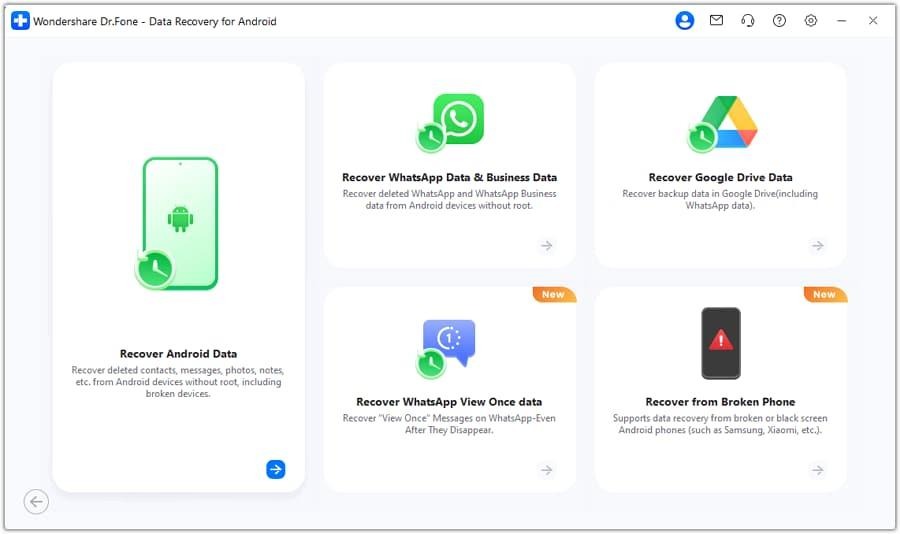
Launch Wondershare Dr.Fone on your computer and go to Toolbox > Data Recovery. Select Android, then choose Recover Android Data.
Step 2. Connect Your Android Device
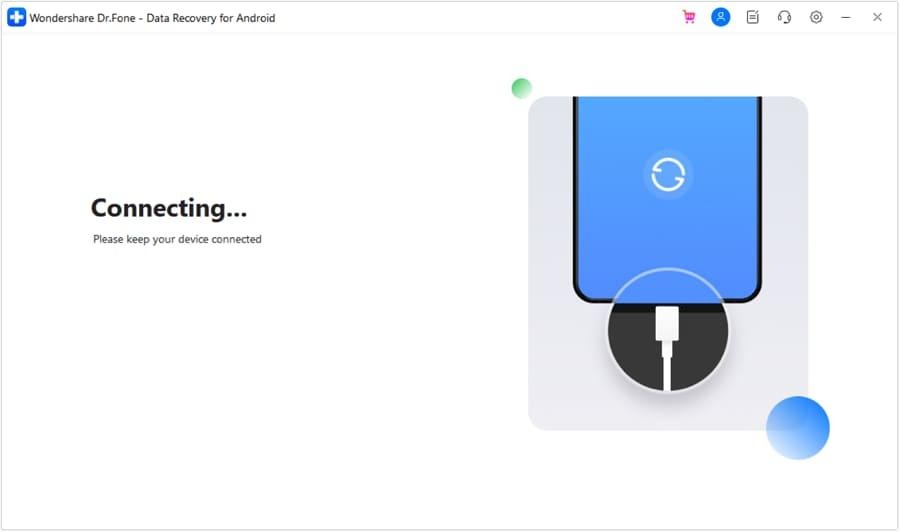
Connect your Android phone to the computer using a USB cable. Wait for Dr.Fone to detect the device.
Step 3. Select File Types and Scan
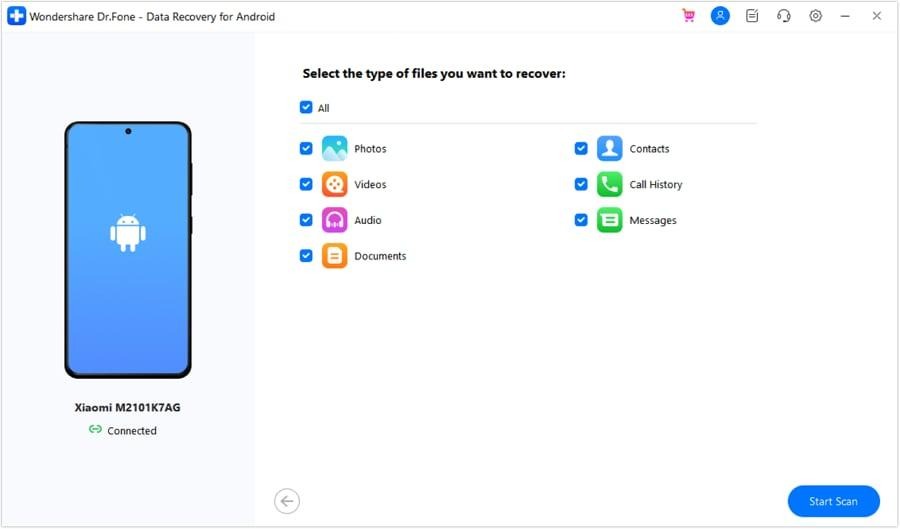
Choose the data types you want to recover, such as photos, videos, audio, contacts, call history, messages, documents, and more. Click Start Scan and wait for the scan to be completed.
Note: The scan may take some time depending on how much data is stored on the device.
Step 4. Recover Your Data
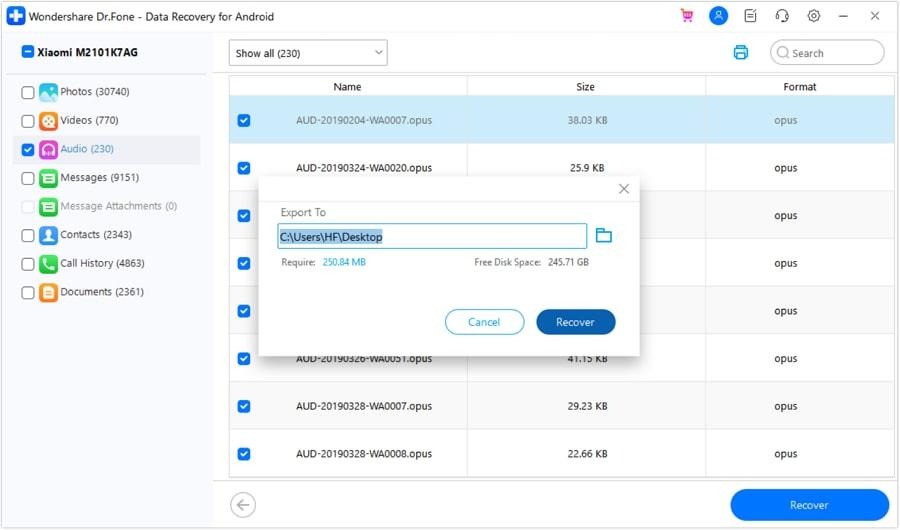
Select the items you need, click Recover, choose a save location on your computer, and confirm the recovery.
Part 4. Previewing WhatsApp Chats, Attachments, and Media
Now, let’s take an example of WhatsApp data. How do you retrieve deleted WhatsApp messages on Android? Dr.Fone is the answer!
WhatsApp is a suitable example of why selective recovery is important. Sometimes one deleted chat, a couple of photos, and a voice message suffice, and you do not have to retrieve all your WhatsApp data.
Dr.Fone can search through your Android phone, and you can preview the content such as chats, messages, videos, voice notes, documents, and other media files before restoring.
View Once media is another type that it handles in some scenarios. Whether a file can be viewed or recovered will depend on the source, the device, the Android version you are using, and whether the content is still there.
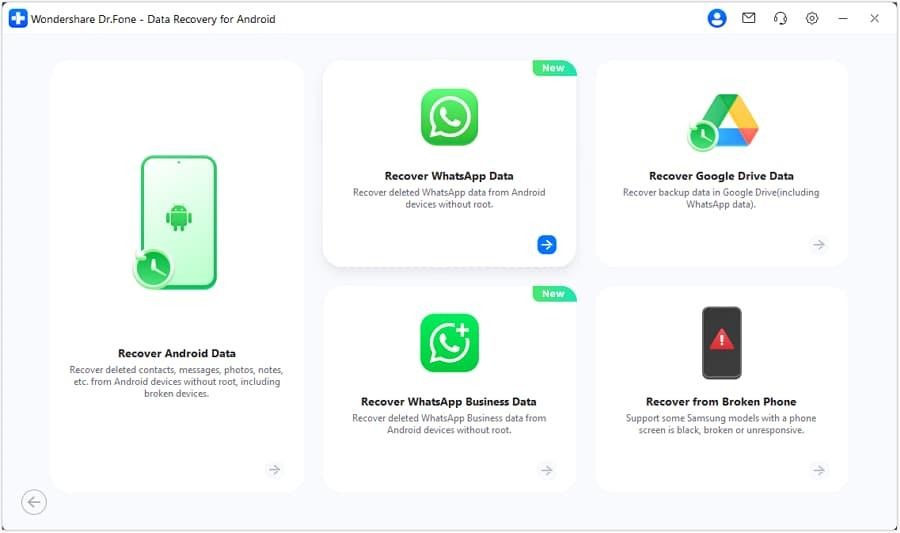
Step 1. Launch Wondershare Dr.Fone on your computer, then click Toolbox > Data Recovery. Pick Android, then select Recover WhatsApp Data.
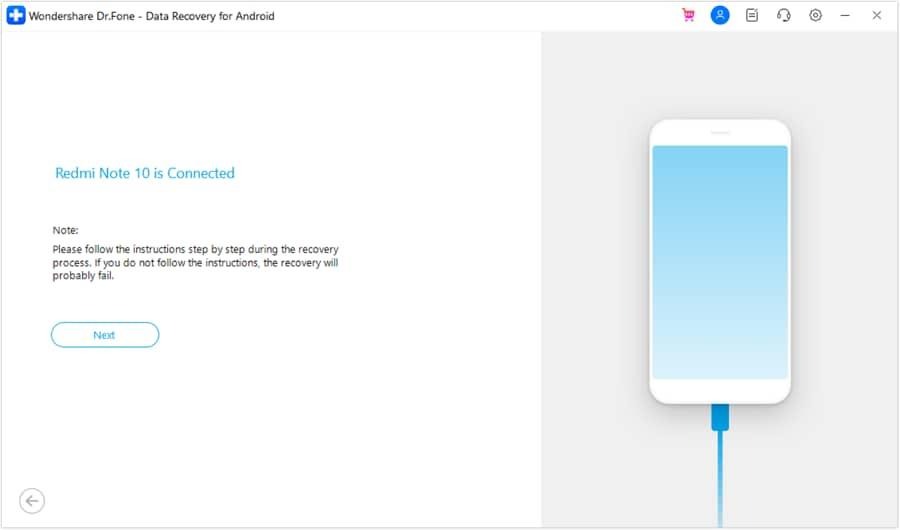
Step 2. Connect your Android phone to the computer. Click Next to start the recovery process.
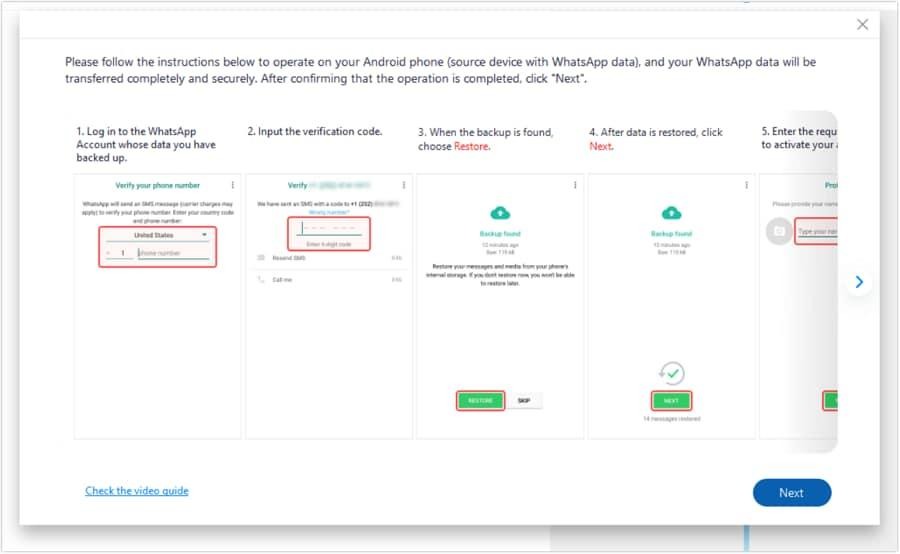
Step 3. Reinstall WhatsApp on your Android phone. Confirm your registered phone number, and recover your WhatsApp data if available, when asked. Click Next on the computer.
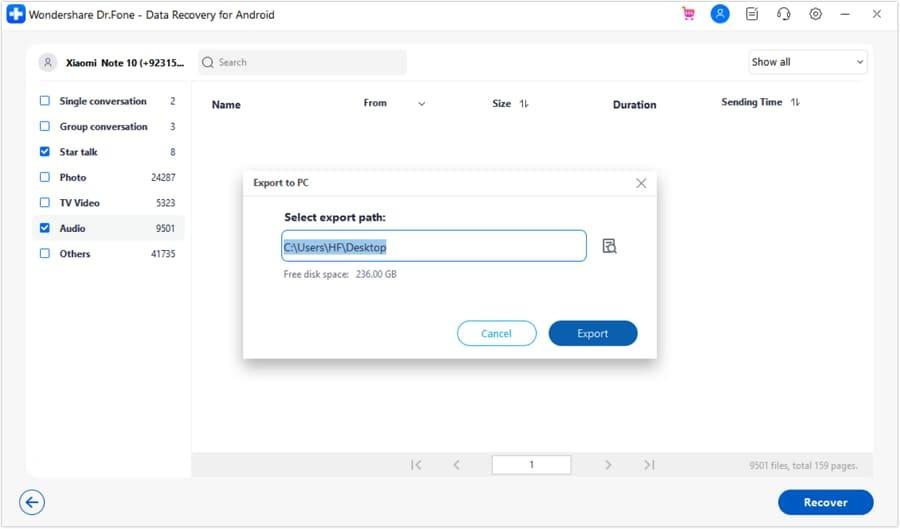
Step 4. Dr.Fone will check and show the available categories of WhatsApp data. Pick which one you want saved, click on “Recover”.
Part 5. Saving Recovered Data and Understanding the Limits
Previewing is a great way to know what files to save, but recovery is not 100% guaranteed. The file might be visible in the results yet not be restored. The more data you delete and overwrite the storage area with new data, the less chance you will have to recover it again.
If you can, save only the needed files rather than restoring all files. Check the recovered photos, documents, chats, or other files after saving them to make sure they open correctly.
Note: Keep in mind that recovery results depend on the device, Android version, data source, file type, and recovery method. No tool can guarantee that every deleted file will be recovered.
Closing Words
Some deleted data may remain recoverable until its storage space is overwritten. But the data recovery process is time-consuming and challenging. Previewing first and selecting only necessary files will make the recovery more effective and less time-consuming.
Tools like Dr.Fone – Data Recovery (Android) can help you discover the supported Android sources, then you will be able to preview available scan results before recovery. Keep in mind that there may be limited possibilities of recovering lost data, especially if the information has already been overwritten by other data.