
Creating eye-catching visual content is essential for standing out on social media, enhancing your online store, or personalizing your digital devices. However, designing custom backgrounds from scratch often requires advanced design skills or expensive software. This is where modern background maker tools come in. They transform complex graphic design into an intuitive, AI-driven process.
What is Background Maker?
A background maker is an intelligent visual creation tool designed to generate, customize, and transform digital backdrops. Whether you need sleek product staging for e-commerce, vibrant graphics for social media posts, or unique wallpaper for desktop and mobile displays, a background maker automates background rendering, lighting adjustments, and style blending in seconds.
Among various AI image editing tools, UltraPic stands out as an all-in-one visual suite that seamlessly integrates a high-performance AI Background Maker. It allows creators of all skill levels to generate high-quality background images that fit your style effortlessly. Below is a detailed guide on how to use this AI bg generator.
How to Design Your Background with Designed Templates
If you are looking for fast, high-quality results without starting from a blank canvas, pre-designed templates offer the most efficient workflow. UltraPic’s Recommended templates section simplifies backdrop design into a few straightforward clicks.
Step 1. Navigate to UltraPic’s Background Generator and upload your image. It will remove the background automatically, leaving a transparent backdrop.
Step 2. Locate the Recommended tab. Here, backdrops are organized by popular themes – such as Studio, Minimal, Nature, Festival, and so on.
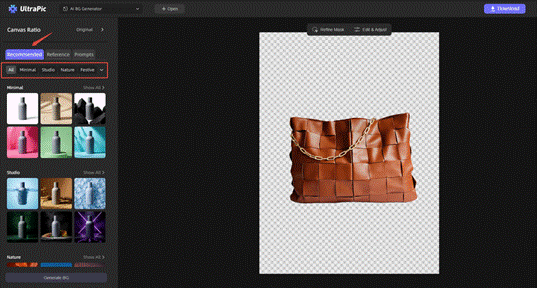
Step 3. Choose a preset tailored to your specific project needs. For example:
- E-Commerce & Retail: Choose clean marble slabs, soft shadow windows, or monochrome podiums to keep the audience focused on the product.
- Social Media & Branding: Opt for pastel gradients, abstract dynamic shapes, or atmospheric neon lighting to capture feed attention quickly.
Step 4. Then, click Generate BG and it will integrate the subjects with the template backdrop.
If needed, you may go to Refine Mask and Edit features to adjust ambient lighting and shadow depth for a more seamless look.
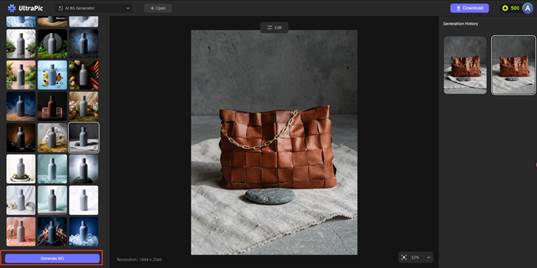
Step 5. When it’s done, click Download to export the image with a new generated backdrop.
How to Create Your Own Backgrounds in Any Style
When off-the-shelf templates do not fully match your brand vision, custom generation provides unlimited creative freedom. Using UltraPic’s Reference and Prompts features, you can build personalized backgrounds tailored to any style.
#1. Constructing Precise Text Prompts
Text prompts instruct the AI generator to build a scene from scratch using natural language descriptions. To achieve professional results, follow a structured prompt formula: [Core Subject/Environment] + [Lighting & Atmosphere] + [Artistic Style/Texture] + [Camera Settings].
- Avoid Vague Terms: Instead of typing “a beach background,” write “a serene tropical beach at golden hour, soft pastel-colored sky, gentle turquoise water, realistic palm leaf shadow casting on soft sand.”
- Incorporate Style Keywords: Guide the output quality by specifying exact artistic parameters such as “photorealistic render,” “cyberpunk aesthetic,” “3D isometric view,” “cinematic warm lighting,” or “minimalist flat illustration.”
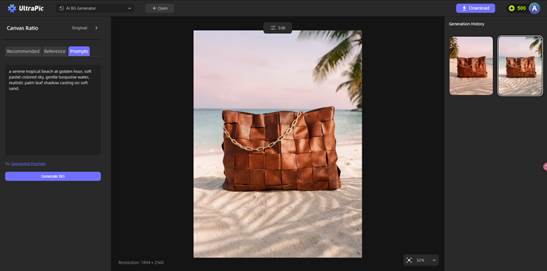
#2. Utilizing Image References for Style Matching
If you already possess a brand style guide, mood board, or specific aesthetic benchmark, the Reference function ensures the generated background aligns with your visual identity:
- Style Transfer & Consistency: Upload a reference image to borrow its color scheme, lighting mood, or physical texture without copying its exact composition.
- Iterative Customization: Combine a detailed text prompt with a reference photo. This dual-input approach forces the AI to match your exact brand guidelines across multiple product SKUs or content variations.
By pairing detailed text prompts with style references, you maintain granular control over composition, mood, and brand guidelines.
Additional Features You May Need to Know
To maximize the efficiency of your visual workflow, consider leveraging these complementary background tools:
- Instant Background Removal: Easily isolate complex subjects – like hair, intricate product edges, or translucent glass – before placing them onto new backdrops.
- Aspect Ratio Customization: Render high-resolution outputs directly tailored for specific placements, including Instagram Stories (9:16), YouTube Thumbnails (16:9), or website banners.
- Photo Improvement: If you want to optimize your photo after generating the background, you can turn to Photo Retouching to remove imperfections & enhance details, and go to Image Enhancer to remove noise & restore damaged product photos easily.
Summary
A versatile background-generation tool is transforming the way digital creators, e-commerce merchants, and marketers produce visual content.
For beginners, you can instantly generate studio-quality visuals simply by browsing UltraPic’s recommended templates. For advanced creators, you can use prompts and the reference image upload feature to bring highly customized creative concepts to life. These AI-driven design workflows not only streamline the content creation process but also help establish a professional brand image while maintaining a unique style.