
Losing important files hurts. You might delete a document by accident, format a hard drive, or lose photos from a memory card and each of these situations causes real frustration. RecoveryFox AI is data recovery software that helps Windows users find and restore lost files from a wide range of supported storage devices.
Whether you need to recover deleted documents, bring back photos, pull videos off an SD card, or scan an external hard drive, RecoveryFox AI offers a solution for many data loss scenarios. This RecoveryFox AI review walks you through what the software offers: its features, the devices it supports, the limits of the free version, and how to recover deleted files safely.
What Is RecoveryFox AI?
RecoveryFox AI is AI data recovery software developed by WonderFox Soft, and it also functions as AI-powered data recovery software for Windows users. It scans supported storage devices to find files that have become inaccessible due to accidental deletion, formatting, or problems with the storage device or its partitions. As AI-powered data recovery software, it recovers a wide range of file types, including photos and digital images, videos and audio recordings, Microsoft Word, Excel, and PowerPoint documents, PDF files and other office documents, compressed archives, and many more formats.
Key Features of RecoveryFox AI
1. Deleted file recovery
If you’re looking to recover deleted files in Windows 11, RecoveryFox AI can scan supported drives to find accidentally deleted files. Whether you’ve removed files from the Recycle Bin or deleted them through other common operations, the software can help you locate and recover files that are still recoverable.
2. Formatted drive recovery
If you accidentally format a hard drive, USB flash drive, or memory card, RecoveryFox AI can scan the device for recoverable data. Results depend on the file system, the type of format performed, and whether new data has been written to the device since.
3. Photo and video recovery
RecoveryFox AI recovers images and videos in many formats. This feature proves especially useful for photographers, content creators, and anyone who has lost important media files.
4. Quick Scan and AI Scan
“Quick Scan” finds recently deleted files, while “AI Scan” performs a more thorough search by identifying file signatures, which digs up more data. AI Scan usually takes longer, especially on large-capacity storage devices.
5. File preview before recovery
RecoveryFox AI lets you preview found files before you recover them. This feature helps you check file integrity and confirm you are targeting the right files, so you avoid blind recovery.
6. Flexible file filtering
When a scan returns hundreds or thousands of files, finding a specific one can take forever. RecoveryFox AI offers flexible filters that let you sort scan results by file type, date, and size.
7. Support for multiple storage devices
RecoveryFox AI recovers data from many storage devices, covering a variety of data loss scenarios. You can use it to scan internal hard drives, external hard drives, solid-state drives (SSDs), USB flash drives, SD cards, microSD cards, and other compatible memory cards. It also supports common file systems such as NTFS, FAT32, and exFAT.
Supported Devices and File Systems
RecoveryFox AI supports several types of storage devices, with specifics depending on the recovery feature and software version you use.
| Device Type | Examples |
| Internal storage | Hard disk drives (HDD) and solid-state drives (SSD) |
| External storage | External hard drives |
| USB storage | USB flash drives |
| Memory cards | SD cards and microSD cards |
| Camera storage | Supported digital camera memory cards |
This AI-powered data recovery software also reads the official product page for supported file systems, which include NTFS, FAT32, exFAT, FAT12/16, EXT2/3/4, XFS, HFS+, and APFS.
How to Recover Deleted Files with RecoveryFox AI?
This Windows data recovery software follows a simple scan-and-recover process.
Step 1: Select a location.
Launch the application and choose the hard drive, partition, USB device, or other supported location where you lost your files.
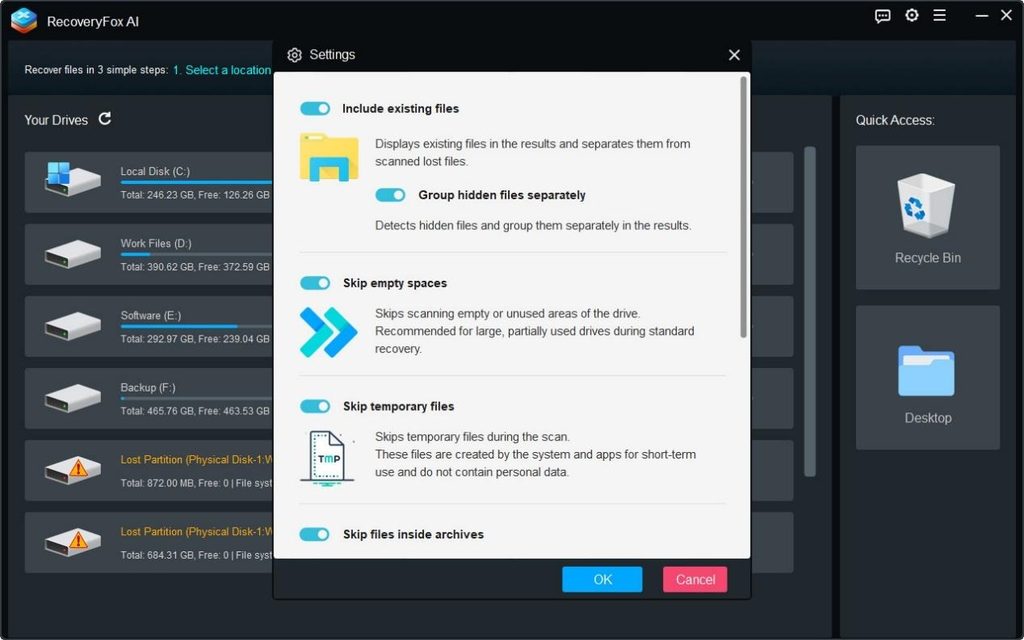
Step 2: Start the scan.
Click “Click to Scan” to search for deleted or lost files. Wait for the software to finish the initial scan.
If Quick Scan does not find all the files you need, let the AI Scan feature run for a more thorough search of the storage device.
Step 3: Find your files.
Use file categories, the search function, or filters to locate the documents, photos, and videos you want to recover.
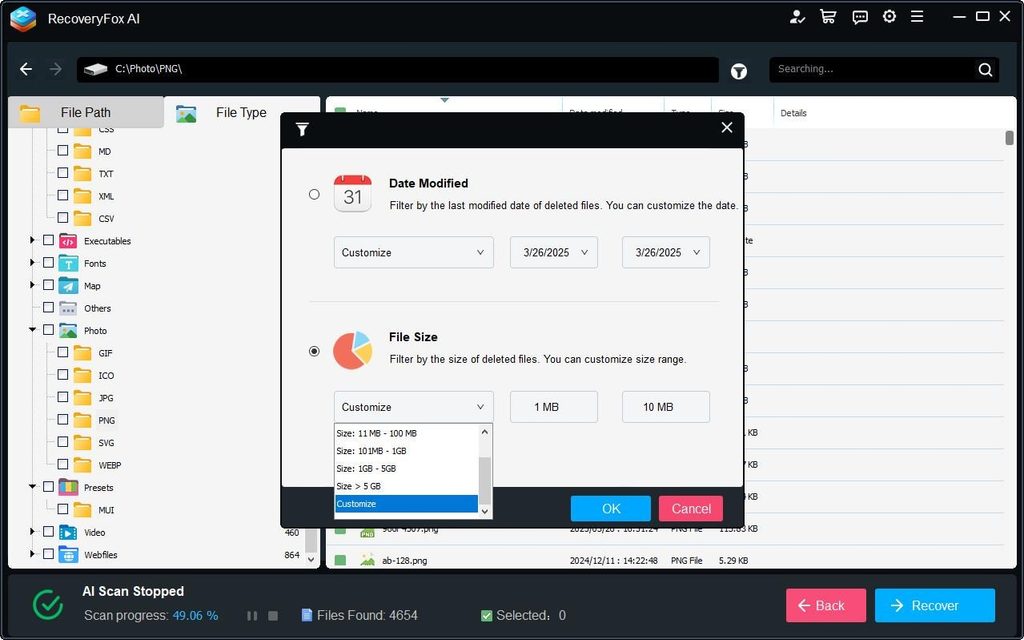
Step 4: Preview recoverable files.
Before recovery, preview the supported file types to confirm they are intact and usable.
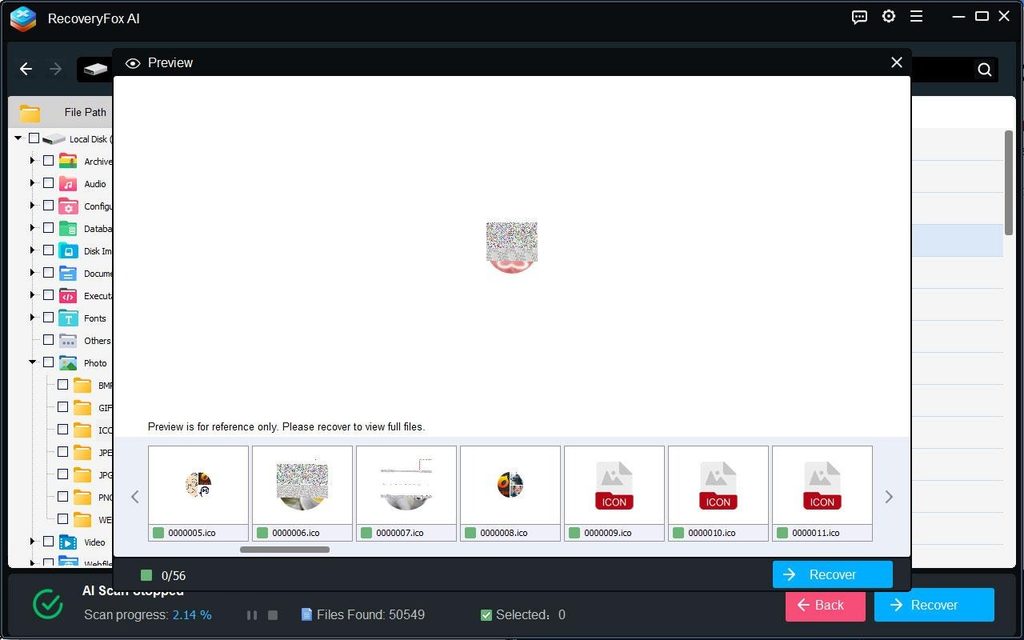
Step 5: Recover your data.
Select the files you need and click “Recover.” Choose a different physical drive or external storage device as the save location.
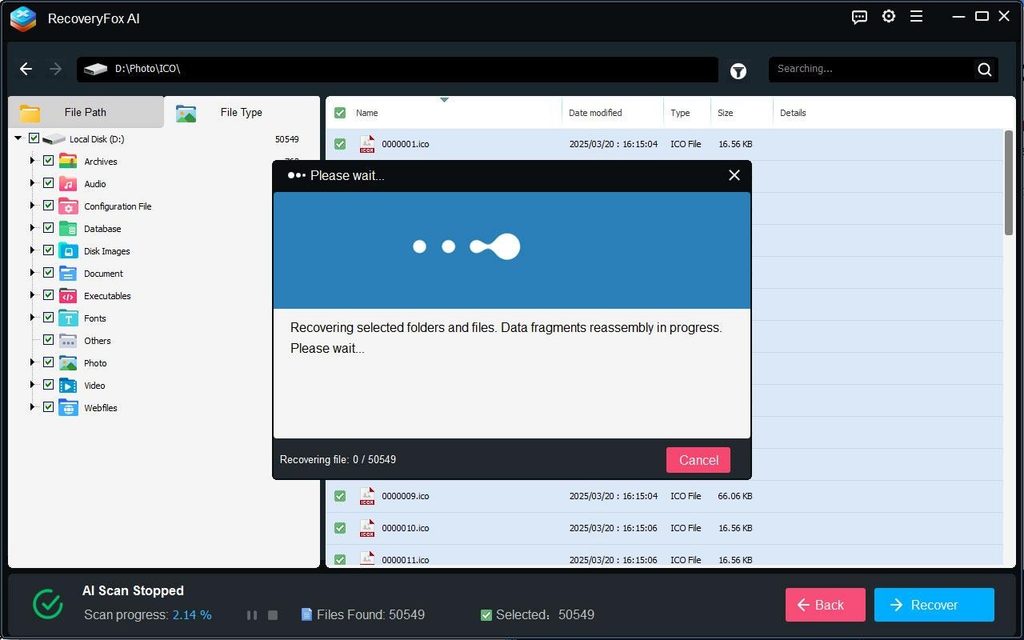
Is RecoveryFox AI Free?
RecoveryFox AI comes in registered and unregistered versions. The unregistered version lets you scan storage devices and preview recoverable data. To perform the actual file recovery, you need to purchase a license to unlock the registered version.
| License Plan | Price | Best For |
| 1-Week | $49.95 | One-time emergencies. You formatted a card or deleted files today and need them back now. |
| 1-Month | $59.95 | Casual users, businesses, freelancers handling short-term projects. |
| 1-Year | $69.95 | Regular users who handle photo archives, client files, or multiple devices throughout the year. |
| Lifetime | $99.95 | Photographers, IT staff, and anyone who wants unlimited recovery without renewing. |
Pros and Cons of RecoveryFox AI
Pros
- Simple, beginner-friendly interface.
- Supports many common file formats.
- Works with hard drives (HDD), solid-state drives (SSD), USB flash drives, and memory cards.
- Offers both Quick Scan and AI Scan options.
- Includes photo and video recovery tools.
- Lets you preview files before recovery.
Cons
- Full recovery requires a paid license.
- AI Scan can take a long time.
Conclusion
For Windows users who need to recover accidentally deleted files, restore photos and videos, or scan formatted storage devices, RecoveryFox AI is a practical Windows data recovery software solution. This AI data recovery software also offers multiple scan options, file preview, and support for many storage media, and both beginners and experienced users can pick it up easily. To stay safe, download the software directly from RecoveryFox’s official channels and avoid unofficial, modified installers.
FAQs
1. Is RecoveryFox AI safe?
Always download the application from the official RecoveryFox website. Avoid tampered installers, unauthorized activation tools, and downloads from suspicious third-party sources.
2. Can RecoveryFox AI recover permanently deleted files?
Sometimes, yes—if the original data has not been overwritten and the storage device remains readable.
3. Can RecoveryFox AI recover a formatted USB flash drive?
Yes. RecoveryFox AI can scan a USB flash drive after accidental formatting. Success depends on how the device was formatted and whether new data has been written to it since.
4. Does RecoveryFox AI support Windows 11?
Yes. Windows 11 is among the operating systems listed on the official RecoveryFox AI download page.
5. Can RecoveryFox AI recover photos and videos?
Yes. It supports recovery of photos and videos in many formats.