
Usually, no. Deleting photos directly from an SD card in File Explorer normally bypasses the Windows Recycle Bin because the card is removable storage. Deleting or formatting pictures in a camera does the same. File entries disappear, although photo data may remain until overwritten.
One exception is worth checking. If you copied the photos to an internal PC drive folder and later deleted those copies, they will be in Recycle Bin and can easily recover them from Recycle Bin or any other backups like File History if enabled.
| Where deletion happened | Check Recycle Bin | What to Do Next |
| Directly on the SD card | Usually no | Stop using the card and scan it from Windows. |
| In a camera | No | Remove the card; do not take more pictures. |
| PC folder after import | Often yes | Restore from Recycle Bin or a backup first. |
If the photos are not backed up, stop writing to the card. Do not take pictures, format the card, run CHKDSK, or save files to it; recovery needs old sectors unchanged. If Windows cannot detect the correct capacity, or the card is damaged or disconnects, use a recovery lab.
Why Use MyRecover for SD Card Photo Recovery?
To effectively recover photos from SD card, we highly recommend using a professional file recovery software named MyRecover. With a very intuitive interface, either computer experts or beginners can easily get data back in more than 500 different data loss scenarios, including accidental deletion, format, virus attack, file system errors, system crash, etc..
| Advantage | Why it matters for an SD card |
| Clear device selection | USB/SD Card Recovery separates removable media from internal disks, helping you choose the correct drive. |
| Quick and deep scan | The scan finds recent deletions and deeper file signatures when folder records are missing. |
| File filter | Narrow results by file type, name, size, or date instead of opening every item. |
| Selective recovery | Choose only needed pictures and save them to a different drive. |
How to Recover Photos from SD Card with MyRecover
- Step 1. Stop using the card, lock its adapter if possible, and connect it through a stable reader. Install MyRecover on the PC, never on the SD card since it might overwrite the device, making the later data recovery more difficult, even nearly impossible .
- Step 2. Open MyRecover, select USB/SD Card Recovery, identify the card by capacity and drive letter, it will perform “Quick Scan” or “Deep Scan” depending on which “Recovery Scenario” you choose on the left panel.
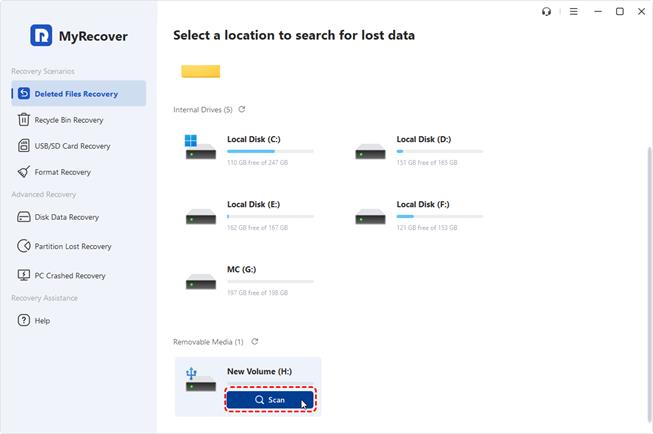
- Step 3. Let the scan run. Use Images, search, and filters to narrow results.
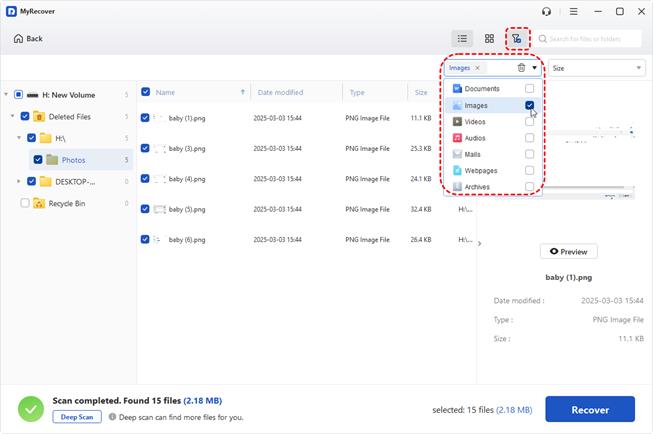
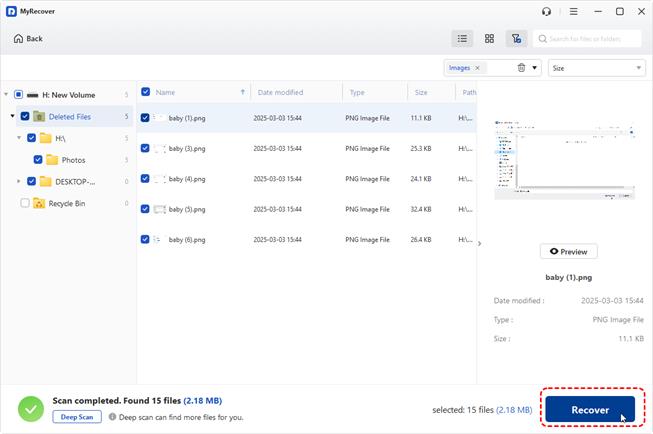
- Step 4. Select the photos and click “Recover”.
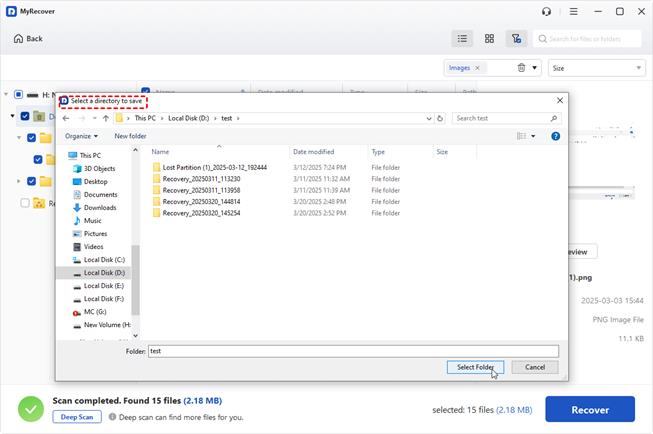
- Step 5. Choose the PC’s internal drive or another disk. Keep in mind never restore to the source SD card; new writes can overwrite unrecovered photos.
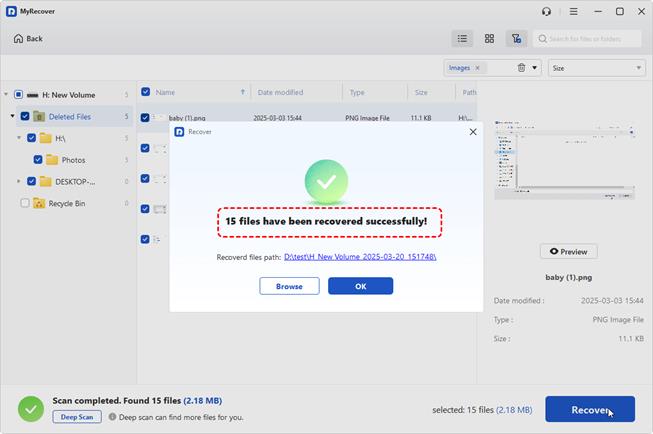
Keep the SD card unchanged until you verify the recovered files and backup. If duplicate images appear, compare resolution and file size; generally speaking, the largest intact version is usually the original, not a thumbnail.
Apart from recovering photos, this software also helps recover other types of files (refer to the table below).
| File Type | Details |
| Images | JPG, PNG, TIF, HEIC, GIF, PSD, SVG, ARW, X3F, NEF, etc. |
| VIDEO | MP4, MOV, AVI, ASF, WMV, RM, FLV, QSV, RMVB, X3F, etc. |
| AUDIO | MP3, CDA, WAV, AIFF, WMA, VQF, OGG, ARM, APE, FLAC, etc. |
| DOCUMENT | TXT, DOC, XLSX, CSV, PDF, PPT, ODP, etc. |
| ARCHIVE | 7Z, ZIP/ZIPX, ZAP RAR, AR/ARC, BZ/BZA, CAR, etc. |
| OTHERS | MSG, EML, XHTML, MHT, HTML/XHTML, ASPX, LAB, etc. |
Summary
Photos deleted directly from an SD card usually do not enter the Windows Recycle Bin. Check Recycle Bin only for copies that were first imported to the PC, then check backups. If neither contains the pictures, stop using the card and scan it with MyRecover from a Windows computer. Select the correct SD card, filter the results, recover only what you need, and save everything to a different drive. When the card is physically unstable or the photos are irreplaceable, pause and consult a recovery lab.
Furthermore, the MyRecover data recovery software can even help recover formatted SD card after deep scanning and searching.