
People migrate files between OneDrive accounts when changing jobs or schools (usually for work or school account), replacing an old Microsoft account, separating personal and business data, or consolidating free storage.
A complete migration can help preserve access before an organization disables an account. Employees and students often need authorized personal files before a work or school account closes. Families may replace an outdated address, while businesses may move data to a new Microsoft 365 tenant. Keep organizational material in the approved business environment and personal content in a personal account.
Transfer OneDrive Files to Another OneDrive Account With Desktop App?
Microsoft recommends syncing both accounts and copying files between their folders in File Explorer or Finder. But please note: the app can keep only one personal OneDrive active on a computer. It may use multiple work or school accounts, but it cannot run two personal accounts in the same desktop profile. If you are planning to transfer files between one personal and one organizational account, you can take the following steps:
Step 1. Install the current OneDrive sync app if needed. Sign in to the source account, choose the required folders, and wait for the initial sync to finish.
Step 2. Select the OneDrive cloud icon in the Windows notification area. Open Help and Settings, select “Settings”, open “Account”, and choose “Add an account”. Sign in to the destination account.
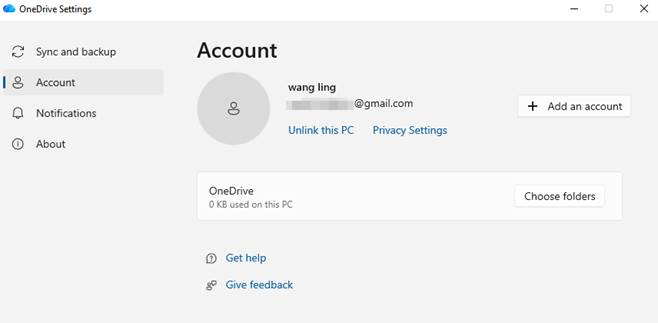
Step 3. In File Explorer, confirm that both OneDrive folders appear. If Files On-Demand is enabled, source items may be online-only, so keep the computer connected while they download.
Step 4. Create a named destination folder. Copy and paste a small test batch before the full library. The copy and paste can reduce accidental drops.
Step 5. Copy the remaining folders and monitor both cloud icons for errors. Wait for destination sync to finish, then compare folder counts and important file sizes.
The desktop method uses Microsoft’s app, but every file passes through the computer, consuming local space, bandwidth, and time. It also cannot transfer directly between two personal OneDrive accounts because both cannot be active in one desktop profile.
Migrate OneDrive to OneDrive With MultCloud
MultCloud is a browser-based cloud manager that runs cloud-to-cloud tasks. Its “Cloud Transfer” feature supports Onedrive to Onedrive Migration without downloading the whole library to the PC. Compared with Desktop app, it comes with the following advantages:
- Allow to connect multiple personal accounts, personal-to-business or business-to-business transfers.
- Direct cloud transfer reduces dependence on the computer’s free space and avoids a manual download-and-upload cycle.
- Transfers continue on MultCloud’s servers after the browser closes or the computer is turned off.
- Handle duplicate names flexibly, include or exclude file extensions, send email notifications, and schedule recurring tasks.
How to Use MultCloud to transfer OneDrive to OneDrive:
Step 1. Open the MultCloud website, create an account, or directly log in with your Gmail, Apple ID or Facebook account.
Step 2. Select “Add Clouds and Emails”, choose “OneDrive”, and authorize the source account on Microsoft’s sign-in page. Repeat for the destination, then label both accounts with different labels .
- Tip: Confirm that the destination has enough storage and that the source account will remain active until verification is complete.
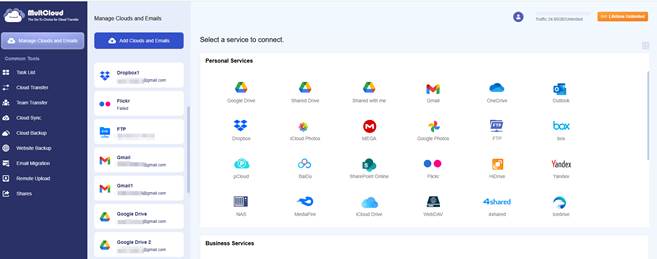
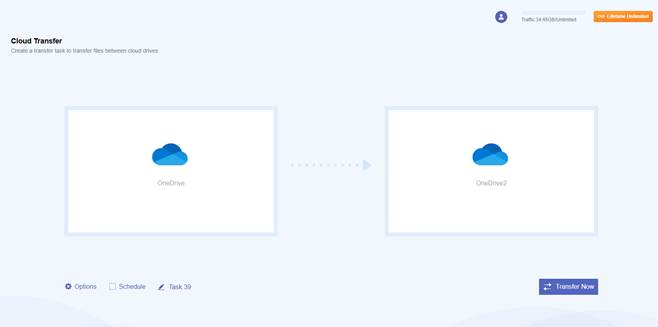
Step 3. Open “Cloud Transfer”. Choose the source account, folder, or files, then select the destination folder. Confirm the direction.
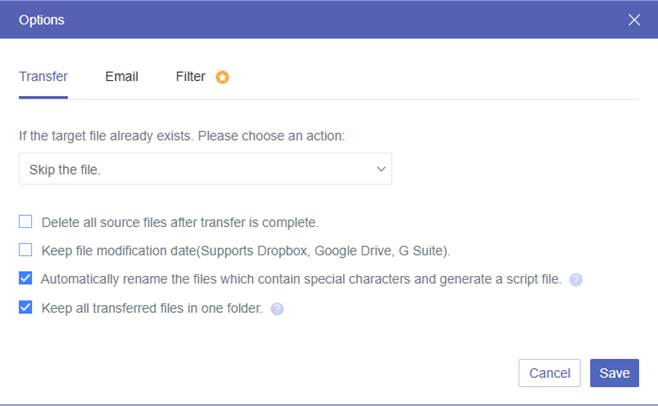
Step 4. Open “Options”. Set duplicate-file handling, apply file filters if needed, and enable email notification. Schedule the task only if it should recur.
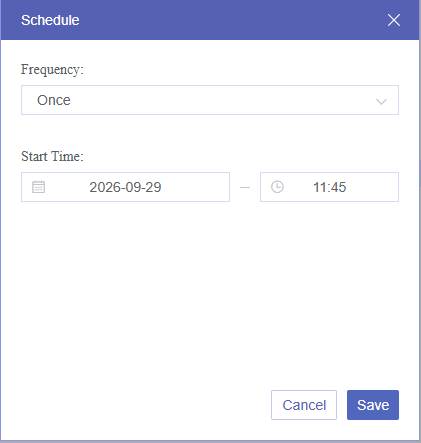
Step 5. Select “Transfer Now”. The task continues after you close the browser. Review Task List for completion, skipped items, or errors.
Summary
OneDrive-to-OneDrive transfer protects access when accounts, employers, schools, or storage plans change. The OneDrive desktop app is a practical Microsoft-native option for one personal account and one work or school account data migration.
To bypass its inability to activate multiple personal OneDrive accounts in one desktop profile, turn ro use MultCloud instead, please. With direct cloud transfer, multiple account connections, background processing, filters, schedules, the process of transferring OneDrive files to another account can be easily done without any hassle. It supports up to 40 different clouds, and you can also transfer Dropbox to Google Drive, Google Drive to Google Photos, iCloud Photos to Google Photos, and so on.