Turning on your computer only to find your D drive missing in Windows 10 is a common and stressful problem. Usually, we store the Windows operating system on the C drive and keep important personal files, work data, or games on the D drive. When the D drive disappears, it blocks access to all that data. Why does this happen? There are four main reasons for a D drive suddenly going missing:
- CD or DVD Drive Takes the Letter: Sometimes, after a reboot or a system change, your CD or DVD drive takes the drive letter “D”. Because of this, your actual local disk loses its letter and stops showing up.
- Windows 10 Updates: Many users find their D drive missing after a major Windows update. The update might alter system settings or mix up drive letters due to unknown system bugs.
- Hidden Drive: Sometimes, computer settings are changed to hide the drive. If the drive is hidden by the system, it will not appear in the Windows File Explorer.
- Accidental Deletion or Formatting: When you adjust partition sizes or manage your disks, you might accidentally delete or format the D drive. This removes the partition completely.
Recover Missing D Drive with AOMEI Partition Assistant
If your D drive is missing or deleted from Disk Management error, you need a professional tool to get it back. AOMEI Partition Assistant is a top-rated disk partition software that can help you restore deleted or lost partitions in Windows 10 safely and quickly.
As long as you do not write new data over the missing partition, this tool can find it and bring all your files back. It has a clean and simple interface, so anyone can use it without special technical skills.
Here is how to use this free drive partition manager to recover your missing D drive:
Step 1: Download, install, and open AOMEI Partition Assistant on your computer. On the main screen, click on “Recover” at the top menu and select “Partition Recovery”.
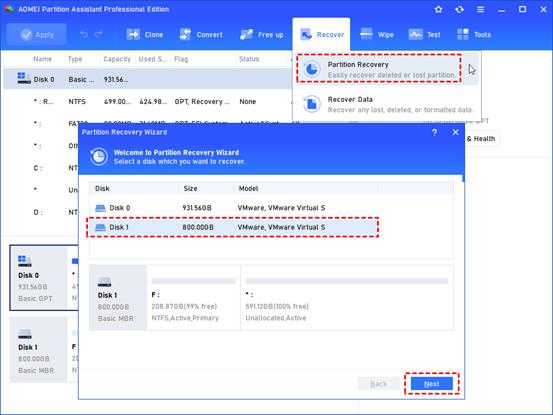
Step 2: A new window will appear. Choose the physical hard disk where your D drive was originally located, and then click to continue.
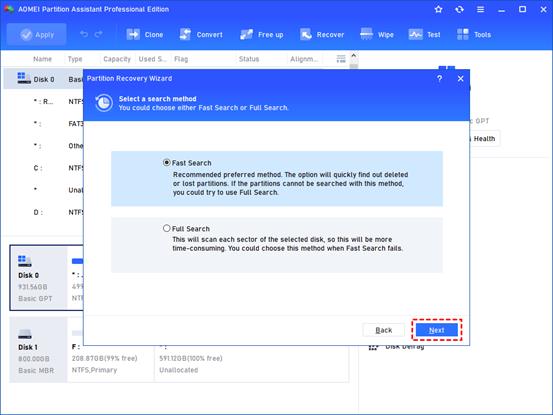
Step 3: Choose a search method. It is highly recommended to select “Fast Search” first, as it takes much less time. If the fast method does not find your missing drive, you can go back and choose “Full Search”.
Step 4: Once the scan is complete, the tool will list all the lost partitions it found. Select your missing D drive from the list and click “Proceed” to start the recovery process. When it is done, click”Finish”.
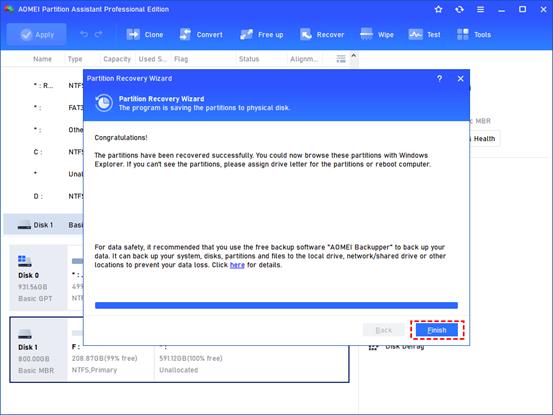
After these simple steps, you can open File Explorer or Disk Management to see your D drive right where it belongs.
Other Hot Features of AOMEI Partition Assistant
Beyond recovering lost partitions, this tool is an all-in-one helper for your computer:
Disk Conversion: You can convert your disk from MBR to GPT, and vice versa. This supports different system types without destroying your saved data.
Resize or Move Partitions: Adjust the size of your drives safely without losing any data.
Clone Disk: Make a complete replacement of your hard drive to back up your data or upgrade to a larger disk easily.
Other Quick Solutions to Help You
If your D drive was not deleted but just facing basic system errors, you can try these quick methods:
- Rescan Disks: Open the built-in Windows Disk Management tool. Click on “Action” at the top menu and choose “Rescan disks”. This forces your computer to check all connected drives again and might bring the D drive back.
- Restore System: If you create system restore points regularly, you can use the System Restore feature. This takes your computer’s settings back to a past date when the D drive was still visible.
- Unhide the Drive: Open File Explorer, click on the “View” tab, and open the options menu. Go to “Advanced settings” and check the box for “Show hidden files, folders, and drives”. This works well if a system bug simply hid your drive.
Conclusion
Finding your D drive missing in Windows 10 is scary, but it is easy to fix when you have the right tools. While Windows offers basic ways like rescanning disks or restoring the system, they cannot recover a deleted or corrupted partition.
AOMEI Partition Assistant offers the most reliable way to recover your lost drive and protect your data. Designed for standard users and experts alike, it is the best software to keep your computer storage safe, organized, and running fast. Try it today and take full control of your hard drives.