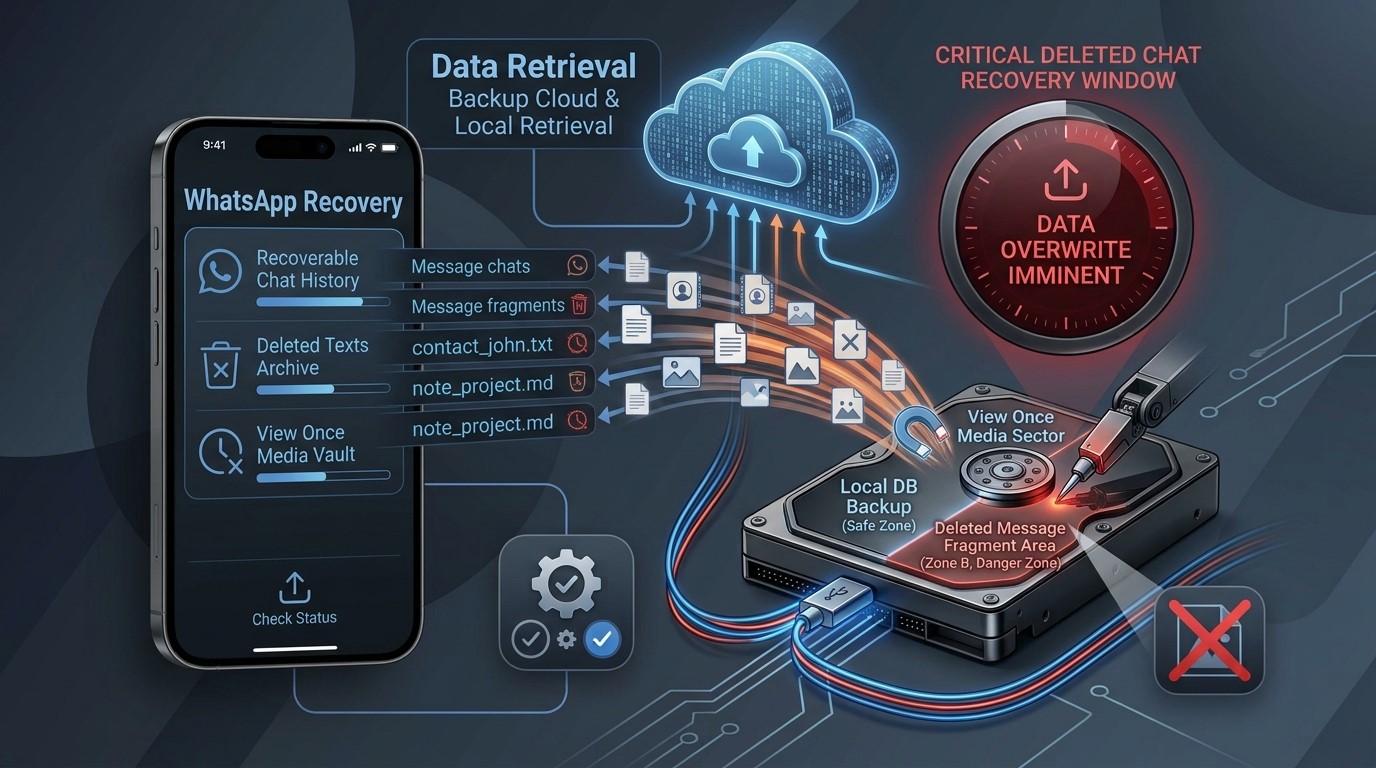
You’ve lost an important WhatsApp chat or a picture shared via View Once on your iPhone. Luckily, you can try to retrieve it from WhatsApp, iCloud, or a manually made backup. Obviously, the optimal way of doing this will greatly differ depending on what format the lost data was saved in and also if it is still recoverable.
Here is a step-by-step tutorial that will lead you to the point of retrieving those WhatsApp messages and finding backups, together with what to do in case you’ve got deleted messages and/or View Once media to look for. Let’s find out how to recover WhatsApp chats on iPhone.
Part 1. Why WhatsApp Chats Can Disappear on iPhone
WhatsApp chats can disappear for different reasons. Knowing the reason can help you choose the right recovery method and recover WhatsApp messages on iPhone.
Deletion by mistake: Accidentally deleted a conversation? It is possible to restore messages if you have a recent backup.
iPhone was reset or erased: You can delete local data that a device holds, by using Erase All Content and Settings option. After this action, if you need to get the chats back, you should rely on an earlier WhatsApp or iPhone backup since recovery software will bring back data that was already erased and doesn’t make copies.
The iPhone got reset or wiped: When you use Erase All Content and Settings option, all the data in the device gets deleted. Following this, you need to seek out an older backup of WhatsApp or iPhone, as recovery software probably won’t locate it if there is no other copy existing.
An earlier backup was restored: If you restored an older backup, your WhatsApp data should change back to the condition it was in at the time the backup was made. Chats received after that backup may not be included in the restored copy.
Part 2. Check Whether an Available WhatsApp or iCloud Backup Exists
Before trying recovery software, check whether a backup contains your missing WhatsApp chats.
Table of Contents
Check WhatsApp Backup
Go to WhatsApp > Settings > Chats > Chat Backup. Check the last backup date and size. If the backup was created before the chats disappeared, it may contain them.
Check out the iCloud
Make sure your iPhone is signed in to the Apple Account linked to your backup. Remember that iCloud Backup and iCloud-synced data are different sources.
Also, find out whether the backup was done before or after the chats were deleted. A backup will only have those data that existed when it was made.
Note: Be careful not to restore an old backup in a hurry since a complete iCloud restore may overwrite your existing iPhone setup.
If there is no suitable backup, check other accessible copies before trying recovery software. A tool cannot recover data that is absent from every accessible source.
Part 3. How to Recover Available WhatsApp Data with Dr.Fone
Dr.Fone – Data Recovery (iOS) scans supported iPhone, iPad, iCloud, iTunes, and local backup sources where available for WhatsApp and WhatsApp Business data. It supports a variety of 16+ WhatsApp data including but not limited to, individual and group chats, WhatsApp Business chats, photos, videos, voice messages, audio files, documents and links, contacts, call history, stickers, status, starred messages, broadcast messages, and View Once content photos, videos, audio messages, and texts.
Standard Recovery allows you to do a free check of the data that can be recovered and to view a preview of the recoverable items. Activation is necessary if you want to recover/export data or restore a backup on a device. Advanced Recovery requires a separate purchase and there are compatibility requirements.
Note: The recoverable data types and the recovery options vary from source to source, mode to mode, device to device and iOS version to iOS version.
Recover Available WhatsApp Data with Dr.Fone
Step 1: Open Data Recovery and choose WhatsApp
Launch Dr.Fone on your computer and go to Toolbox > Data Recovery. Select iOS as the device type, then choose “Recover Messaging App Data”.
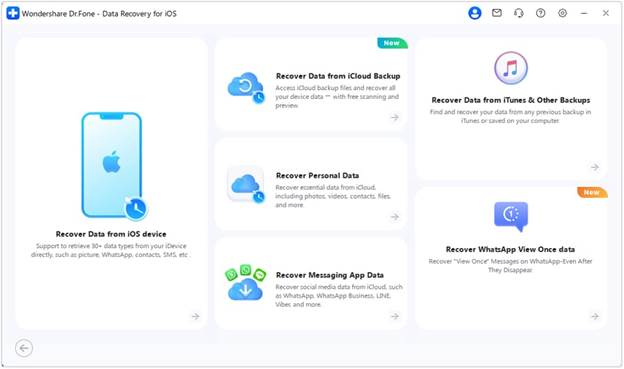
Step 2: Sign in to iCloud
Choose the iCloud recovery. Complete two-factor authentication when prompted.
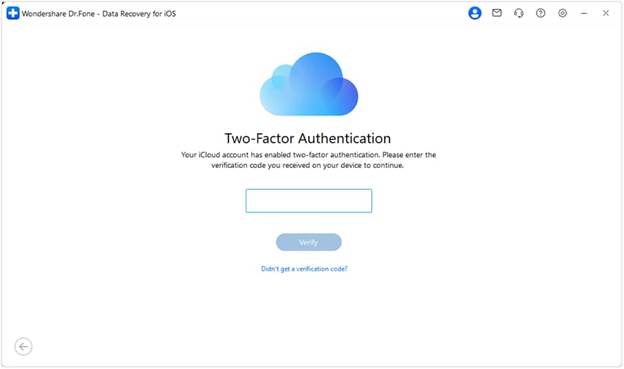
Note: Select WhatsApp or WhatsApp Business as the data type. Dr.Fone then downloads the available iCloud files.
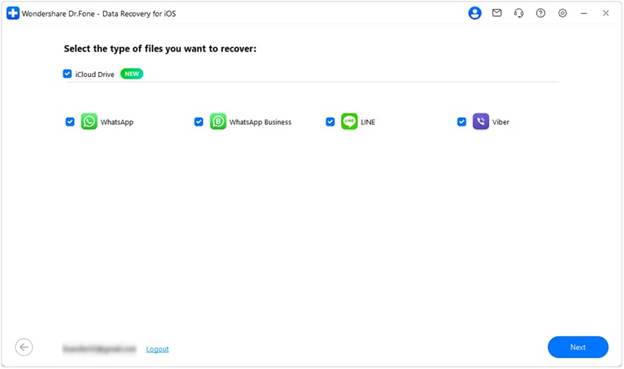
Step 3: Scan and preview the available data
After verification, Dr.Fone displays the available WhatsApp data. Preview the results and select the items you want to recover.
Note: Previewing helps you check what is available before recovery. Some deleted data may be incomplete or unavailable for export.
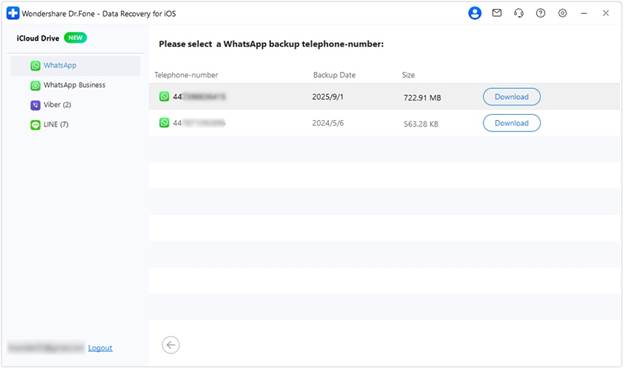
Step 4: Recover the selected data
Choose Recover to Computer to save the selected WhatsApp data locally. Where supported, Restore to Device can return compatible data to the iPhone.
Part 4. What About WhatsApp View Once Media?
View Once media including photos, videos, audio messages, and text all function in a somewhat different manner than regular WhatsApp conversations. However, Dr.Fone can still retrieve the content using its Linked Devices feature, as long as it remains accessible in a compatible WhatsApp session.
This does not mean every View Once item can be recovered, so availability depends on the content and account access.
Recover WhatsApp View Once messages
Step 1: Open WhatsApp Recovery
Launch Dr.Fone and click on the Toolbox and then Data Recovery. Choose iOS, then go to Recover WhatsApp View Once Data.
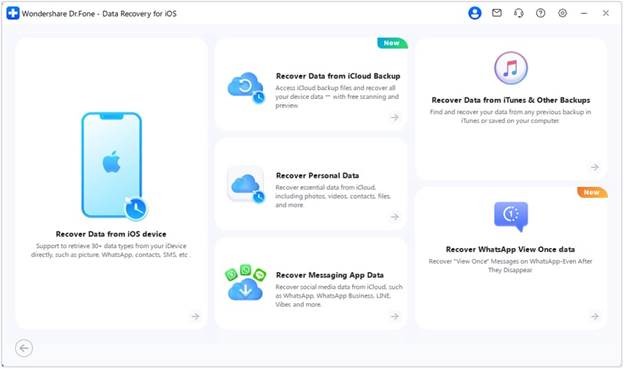
Step 2: Start the recovery process
Connect the supported iPhone to the computer and click Start Recovery to start the Recovery process.
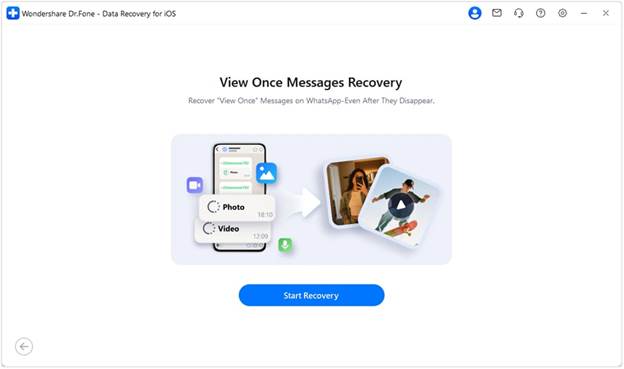
Step 3: Link your WhatsApp account
On the iPhone, open WhatsApp > Settings > Linked Devices > Link a Device. Then, scan the QR code to link the accounts.
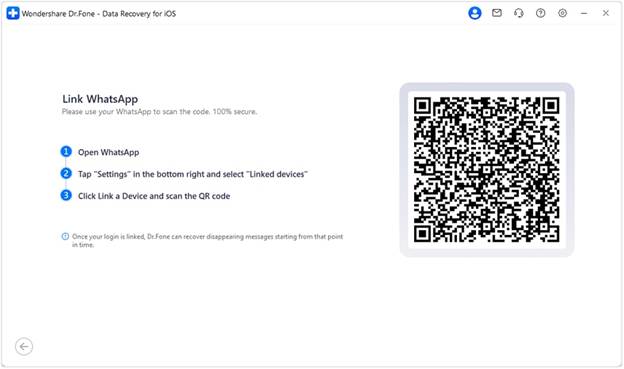
Step 4: Preview and export View Once content
After synchronization, click on the View Once items and Export them to save the files onto your computer.
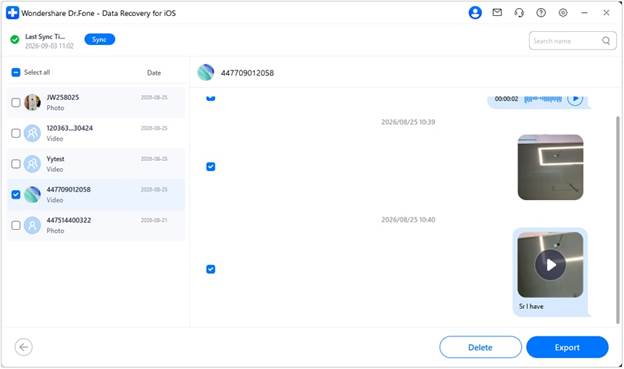
Part 5. Preview, Restore, or Export Available WhatsApp Data
Once your data is scanned, you’ll see previews of WhatsApp data and can check what options are available.
Choose Recover to Computer to save the selected data locally. If Restore to Device is available for the selected data, you can use it to return compatible data to your iPhone.
Note: Recovery options depend on the data source, type, device, iOS version, and recovery mode.
Closing Words
Whether you still have an iPhone, an iCloud, or any other backup copy, it’s possible to get the backup copy to retrieve WhatsApp chat history.
If you still cannot obtain data from your backups, Dr.Fone Data Recovery (iOS) could be another alternative for you. It supports scanning your iPhone, iCloud, iTunes and your local backup files, previews the WhatsApp data that can be found, and allows you to recover only what you want without overwriting any data from your current device.