
Don’t back up just a few databases – protect your entire SQL Server environment. A complete backup strategy safeguards critical business data, system information, and application settings from unexpected failures. What’s more, it can:
- Simplify disaster recovery: Having backups of all databases makes it easier to restore SQL Server after a server failure or other major incident.
- Protect business-critical applications: Applications may depend on multiple databases. Backing up all databases helps ensure that required data is available during recovery.
- Support database migration: Full database backups can be useful when moving databases to another SQL Server or rebuilding a server environment.
In this guide, you’ll get the best SQL backup software to help you perform SQL Server backup all databases.
Choose Reliable SQL Database Backup Software
For businesses that need to protect multiple SQL Server databases, AOMEI Cyber Backup provides centralized SQL backup and recovery from a single web console. It can add and manage SQL databases in batches, back up multiple databases in an instance, and save backups to local drives, external storage, network shares, or Amazon S3.
✅ Centralized SQL Backup: Manage all your SQL Server databases from a single web console – and protect your entire environment with less effort.
✅ Automated SQL Backup: Schedule backup tasks to run automatically according to your preferred frequency and backup type.
✅ Full, Incremental, and Differential Backup: Pick the right backup method for your needs – considering data size, storage, and requirements. Go incremental or differential to save time and space.
✅ Multiple Backup Destinations: Protect your SQL backups by saving them anywhere – local drives, external storage, network shares, or Amazon S3 – for extra security and off-site retention.
✅ Point-in-Time Recovery: Restore your SQL Server databases to a specific recovery point – and get your data back to how it was before the incident.
✅ Recovery to a New Server: Restore your database wherever you need it – back to its original location or to a new server – for migration, hardware upgrades, or disaster recovery.
✅ Instant Object Recovery: Restore individual database objects – tables, indexes, views – without the hassle of restoring the entire database.
✅ Backup Cleanup: Keep your storage under control. Set retention policies to automatically delete old or unneeded backups – no manual cleanup required.
✅ Monitoring and Alerts: Keep an eye on everything from one dashboard. Email notifications and error alerts help admins catch failed or problematic backup jobs before they become bigger issues.
How to Back Up All Databases in SQL Server Step by Step
Backing up multiple SQL databases one by one is slow – and easy to miss one. AOMEI Cyber Backup lets you add SQL Server instances and back up all databases at once, from one central location. Follow the instructions below:
Step 1. Add the SQL Server Instance
- Install AOMEI Cyber Backup on the computer you’ll use to manage everything. Then install the proxy program on the computer where SQL Server is installed.
- Launch AOMEI Cyber Backup and go to Source Device > Microsoft SQL > Add Microsoft SQL. Enter the required connection information to add the SQL Server instance.
Step 2. Create an SQL Backup Task
- From the left-side menu, select Task > Backup > Create New Task.
- Choose Microsoft SQL Backup as the backup type.
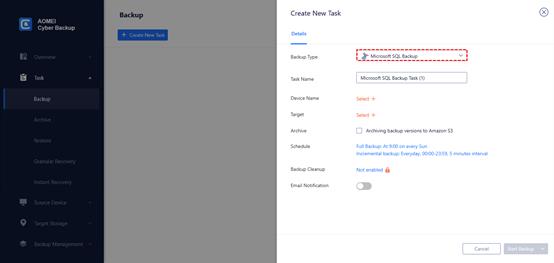
- Enter a Task Name, or keep the default name.
- In the Device Name section, click Select + to select the SQL Server instance you want to protect. From there, choose individual databases, several at once, or all databases in the instance.
- In the Target section, click Select + to specify where you want to save the SQL database backups. Options include local paths, external storage, network shares, or cloud storage like Amazon S3 – pick what fits your setup.
- Configure Schedule according to how frequently your databases change. The scheduled backup will run as full backup or incremental backup.
- For sustained automated backup operations, configure Backup Cleanup to purge older backup versions in accordance with defined retention policies. You can also enable Email Notification to receive notifications about backup task results or abnormal conditions.
- After completing the settings, click Start Backup to create and run the task.
Final Words
Backing up all databases in SQL Server is an effective way to protect critical business data and simplify disaster recovery. Stop creating a separate backup task for every database. AOMEI Cyber Backup lets you select multiple – or all – databases in a SQL Server instance and manage them all from one web console. Besides SQL backup, you can also use it to backup VMWare ESXi. Just give it a shot!